
Adding / Updating Billing Information
Purpose
This article explains how to add or update the payment method associated with your account.
Prerequisites
- You must be the Account Creator to access and update the account's billing information.
- You will need the new payment method information available when making an update.
Browser Instructions
Step 1: Open Billing
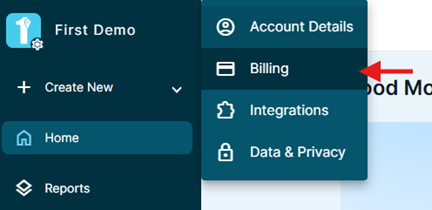
- In the upper-left corner of the application, click the Account Name.
- Select Billing.
Step 2: Locate the Payment Method
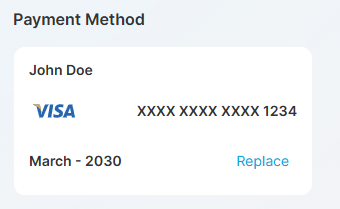
- Locate the Payment Method section.
- Your current payment method will be displayed.
Step 3: Replace the Payment Method
- Click Replace next to the existing payment method.
- Enter the new payment information.
- Follow the prompts to complete the update.
Step 4: Confirm the Update
Once the new payment information has been successfully submitted, the updated payment method will appear under Payment Method.
Frequently Asked Questions
Why can't I access the Billing page?
Only the Account Creator has access to the account's billing information.
Can I update my billing information at any time?
Yes. The Account Creator can replace the existing payment method at any time during their subscription.
Still need help?
Can’t find what you need? Call us or open a support ticket and our team will get back to you.
+1 (833) 231-6212 · Mon–Fri, 9 AM – 5 PM (Eastern Time)