
Uploading Multimedia to a Report
Purpose
This article explains how to add multimedia files to a report while completing it on a mobile device or browser. You can attach photos, videos, audio recordings, and documents or other files to a report.
Mobile Instructions
Step 1: Locate the Attachment Field
- While completing a report, locate the Attachment field.
- Tap the appropriate icon to add the type of multimedia you want to attach.
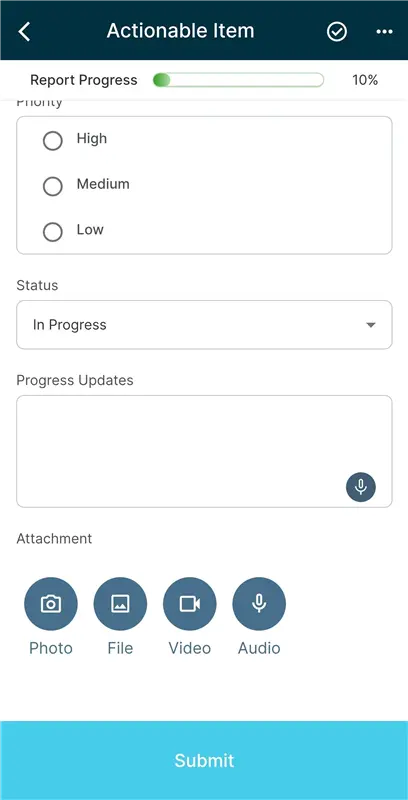
Step 2: Select the Type of Attachment
The available options allow you to capture new media, select existing media, or upload another type of file.
- Photo - Selecting the Photo option will present you with your devices camera (if available) and will allow you to take an image in real time and attach it to the incident report.
- File - Selecting the Library option will present you with your devices saved media library allowing you to attach a previously saved file to the report.
- Video - Selecting the Video option will present you with your devices camera (if available) and will allow you to take a video in real time and attach it to the incident report.
- Audio - Selecting the Audio option will present you with an audio recording control and allows you to record an audio clip via your devices microphone in real time and attach it to the report.
Browser Instructions
Step 1: Locate the Attachment Field
- While completing a report, locate the Attachment field.

Step 2: Select the file of your choice
- Use your computer’s storage to identify and select the file of your choice.
- The file can be the format of your choice.
Frequently Asked Questions
Is there a file size limit for attachment?
By default, the maximum file size is 25 MB per attachment. If you need to upload larger files, the attachment size limit can be increased upon request.
Still need help?
Can’t find what you need? Call us or open a support ticket and our team will get back to you.
+1 (833) 231-6212 · Mon–Fri, 9 AM – 5 PM (Eastern Time)