
Exporting a PDF / Printing an Incident
Purpose
This article explains how to print an incident or download it as a PDF from the platform.
Prerequisites
- You must have access to the incident you want to print or export.
- The incident can be located from either the Home page or the Reports page.
Browser Instructions
Step 1: Locate the Incident
Find the incident you want to print or download.
You can locate an incident from either:
- The Home page
- The Reports page
Step 2: Open the Report Options
Depending on where you located the incident:
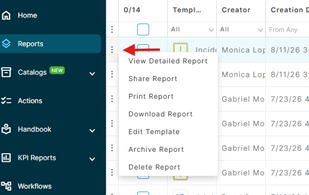
From the Reports page:
- Click the three dots (⋮) next to the incident.
- The report options will appear.
From an Open Report:
- Open the incident.
- Click the three dots (⋮) in the upper-right corner of the report.
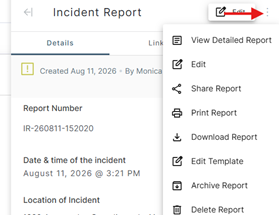
Step 3: Print or Download the Report
Choose the option that matches what you would like to do:
- Print Report — Opens the print options so you can print the incident.
- Download Report — Downloads the incident as a PDF file to your computer.
Printing the Incident
If you select Print Report, your browser's print dialog will open. From there, select your printer and adjust the available print settings before printing the incident.
Downloading the Incident as a PDF
If you select Download Report, the incident will be generated and downloaded as a PDF file. You can then save, share, or print the PDF as needed.
Frequently Asked Questions
Where can I find an incident?
Incidents can be located from either the Home page or the Reports page.
What's the difference between Print Report and Download Report?
Print Report allows you to send the incident directly to a printer using your browser's print options. Download Report saves the incident as a PDF file on your computer.
Still need help?
Can’t find what you need? Call us or open a support ticket and our team will get back to you.
+1 (833) 231-6212 · Mon–Fri, 9 AM – 5 PM (Eastern Time)