
Sharing a Report
Purpose
This article explains how to share a report with another user or external recipient via email.
Prerequisites
- You must have Sharing Rights to share reports.
- You must have access to the report you wish to share.
Instructions
Step 1: Locate the Report
- Navigate to the report you would like to share.
- Locate the three dots (⋮) next to the report.
Step 2: Open the Report Options Panel
- Click the three dots (⋮) next to the report.
- The Report Options Panel will open.
Step 3: Select Share Report
- Click Share Report from the available options.
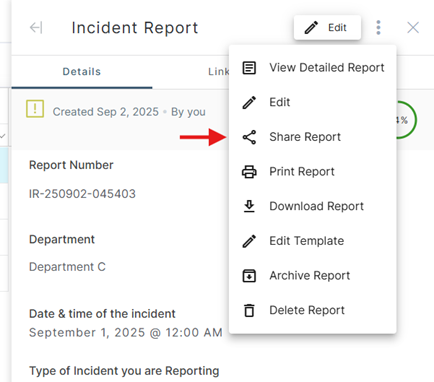
Step 4: Select the Recipient
- Select a user from the list of users within the system.
- OR -
- Enter the recipient's email address manually.
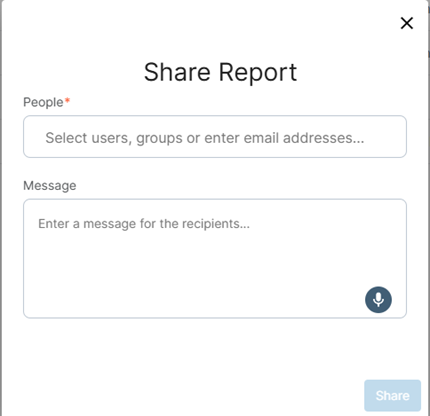
Step 5: Add an Optional Message
- Enter a message to provide additional context to the recipient (optional).
Step 6: Share the Report
- Click Share.
- The report will be shared with the selected recipient.
Important Notes
Sharing Rights Required
Only users with Sharing Rights can share reports. If you do not see the Share Report option, contact your system administrator to verify your permissions.
Frequently Asked Questions
Can I share a report with someone who is not a user in the system?
Yes. You can manually enter an email address when sharing a report.
Why can't I see the Share Report option?
The Share Report option is only available to users who have been granted Sharing Rights.
Is a message required when sharing a report?
No. Adding a message is optional, but it can help provide context to the recipient.
How will the recipient know a report has been shared?
The recipient will receive an email notification informing them that a report has been shared with them.
Still need help?
Can’t find what you need? Call us or open a support ticket and our team will get back to you.
+1 (833) 231-6212 · Mon–Fri, 9 AM – 5 PM (Eastern Time)