
Adding / Updating Billing Information
Purpose
This article explains how to add or update the payment method associated with your account.
Prerequisites
- You must be the Account Creator to access and update the account's billing information.
- You will need the new payment method information available when making an update.
Browser Instructions
Step 1: Open Billing
- In the upper-left corner of the application, click the Account Name.
- Select Billing.
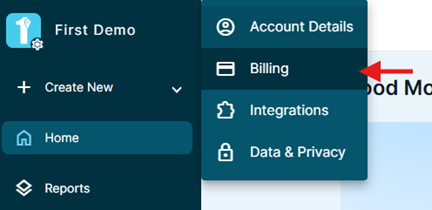
Step 2: Locate the Payment Method
- Locate the Payment Method section.
- Your current payment method will be displayed.
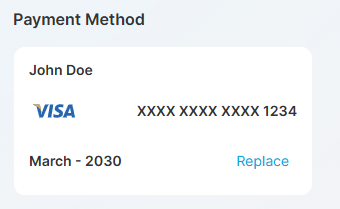
Step 3: Replace the Payment Method
- Click Replace next to the existing payment method.
- Enter the new payment information.
- Follow the prompts to complete the update.
Step 4: Confirm the Update
Once the new payment information has been successfully submitted, the updated payment method will appear under Payment Method.
Frequently Asked Questions
Why can't I access the Billing page?
Only the Account Creator has access to the account's billing information.
Can I update my billing information at any time?
Yes. The Account Creator can replace the existing payment method at any time during their subscription.
Vous avez encore besoin d'aide ?
Vous ne trouvez pas ce qu'il vous faut ? Appelez-nous ou ouvrez un ticket et notre équipe vous répondra.
+1 (833) 231-6212 · Mon–Fri, 9 AM – 5 PM (Eastern Time)