
Exporting Your Organization's Report and User Data
Purpose
This article explains how to request an export of your organization's system data, including report and user data.
Prerequisites
- You must be the Account Creator to request an organization data export.
Browser Instructions
Step 1: Open Data & Privacy
- In the upper-left corner of the application, click the Account Name.
- Select Data & Privacy.
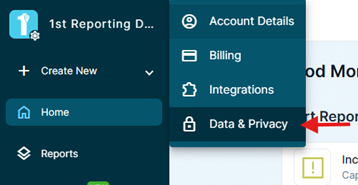
Step 2: Request a Data Export
- Click Request Export.
- Your organization's data export will begin processing.
Step 3: Wait for the Export to Complete
Once the export is complete, an email notification will be sent to you.
Step 4: Download Your Data
- Return to the Data & Privacy page.
- Your completed data export will be available for download.
- Download the export whenever needed.
The completed export will remain available within the Data & Privacy page, allowing you to access it again at any time.
Frequently Asked Questions
Who can request an organization data export?
Only the Account Creator can request an export of the organization's data.
How will I know when the export is ready?
An email will be sent once the data export has been completed.
Where can I find a previously requested export?
Go to Account Name → Data & Privacy. Completed data exports will be available there for download.
¿Todavía necesita ayuda?
¿No encuentra lo que necesita? Llámenos o abra un ticket de soporte y nuestro equipo le responderá.
+1 (833) 231-6212 · Mon–Fri, 9 AM – 5 PM (Eastern Time)