
How to Bulk Upload Users
Purpose
This article explains how to add multiple users to your organization at once using a CSV file.
Prerequisites
- You must have System Administrator permission.
Browser Instructions
Step 1: Navigate to Users
- Open the web application.
- Navigate to Team → Users.
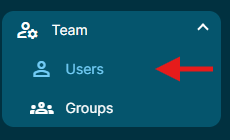
Step 2: Export the User Template
Before uploading users, you must first export your existing users. This generates the template required for the bulk upload.
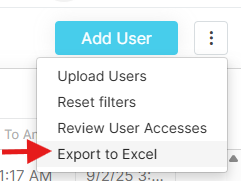
- On the Users page, click the three dots (⋮) in the upper-right corner.
- Click Export to Excel.
- An Excel spreadsheet containing your users will be downloaded.
Step 3: Prepare the User Template
- Open the downloaded Excel spreadsheet.
- Remove all existing user rows, while keeping the column headers.
- Add the information for the new users you want to upload.
- Review the information to ensure all required fields are completed.
- Save the spreadsheet as a CSV file.
Tip: Keep the column headers from the exported template unchanged. They define the format expected when uploading users.
Step 4: Upload the Users
- Return to Team → Users in 1st Reporting.
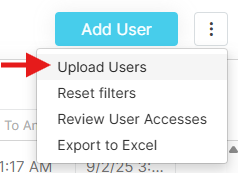
- Click the three dots (⋮) in the upper-right corner.
- Select Upload Users.
Step 5: Select the CSV File
- Select the CSV file you prepared.
- Review the users included in the upload.
- Confirm the user upload.
Once confirmed, the users included in the CSV file will be uploaded to your organization.
Important Notes
Use the Exported Template
You must first export your existing users to generate the appropriate upload template. You may create a new spreadsheet from scratch, as long as the column headers have the exact same title as the Users page headers.
CSV Format
The completed template must be saved as a CSV file before it can be uploaded.
Frequently Asked Questions
Can I create my own Excel template?
Yes, however, It is recommended that you use the template generated by Export to Excel. This ensures that the correct columns and format are used for the upload.
What file format is required for the upload?
The file must be saved as a CSV before uploading.
Why can't I see the Upload Users option?
Only System Administrators have permission to bulk upload users.
Ainda precisa de ajuda?
Não encontrou o que precisa? Ligue para nós ou abra um chamado e nossa equipe retorna o contato.
+1 (833) 231-6212 · Mon–Fri, 9 AM – 5 PM (Eastern Time)